Ask your AI for an image. Get the file.
Ask your AI assistant for an Instagram post, a banner, a logo or a favicon set. RenderPixels makes it at the exact size each platform asks for and hands back files ready to use.
- Free renders reset every month
- No card needed
Works with Claude, Claude Code, ChatGPT, GrokBot and any assistant that supports remote MCP with OAuth.
750+ images rendered so far
RenderPixels share image
Share
Make an Open Graph image for RenderPixels. Light paper, a serif headline and a grid of red pixels.
 RenderPixelsrender
Here's your Open Graph image at 1200 × 630. Download it, or copy the link into your page's meta tags.

Reply to Claude…
How it works
Connect once, then just ask.
Your AI assistant writes the design as code. RenderPixels renders it in a real browser and hands back the files.
Connect once
Add RenderPixels to Claude, ChatGPT or any assistant that supports remote MCP. You sign in to your RenderPixels account, no API keys.
Ask in plain words
Describe the text, the colors and the mood. Your AI assistant writes the design and RenderPixels renders it.
Checked before you see it
Each render reports clipped text and missing fonts or images, so your assistant can fix them and try again.
See it before you share it
In Claude, the image appears in the chat with Download and Copy URL. In any assistant, you get a preview page with downloads and, for share images, how the link will unfurl.
Links that last
Every file gets a permanent URL you can drop straight into a page, a meta tag or a message.
Same prompt, two results
ChatGPT vs RenderPixels
I gave the same prompt to ChatGPT's image generator and to an AI assistant using RenderPixels on November 9, 2026. Both results are below, with the facts about each file.
Create an image: an Open Graph image (1200 × 630) for my blog post "How we cut our build time in half" on the Field Notes blog, by Sam Rivera, 6 min read. Warm paper background, serif headline.
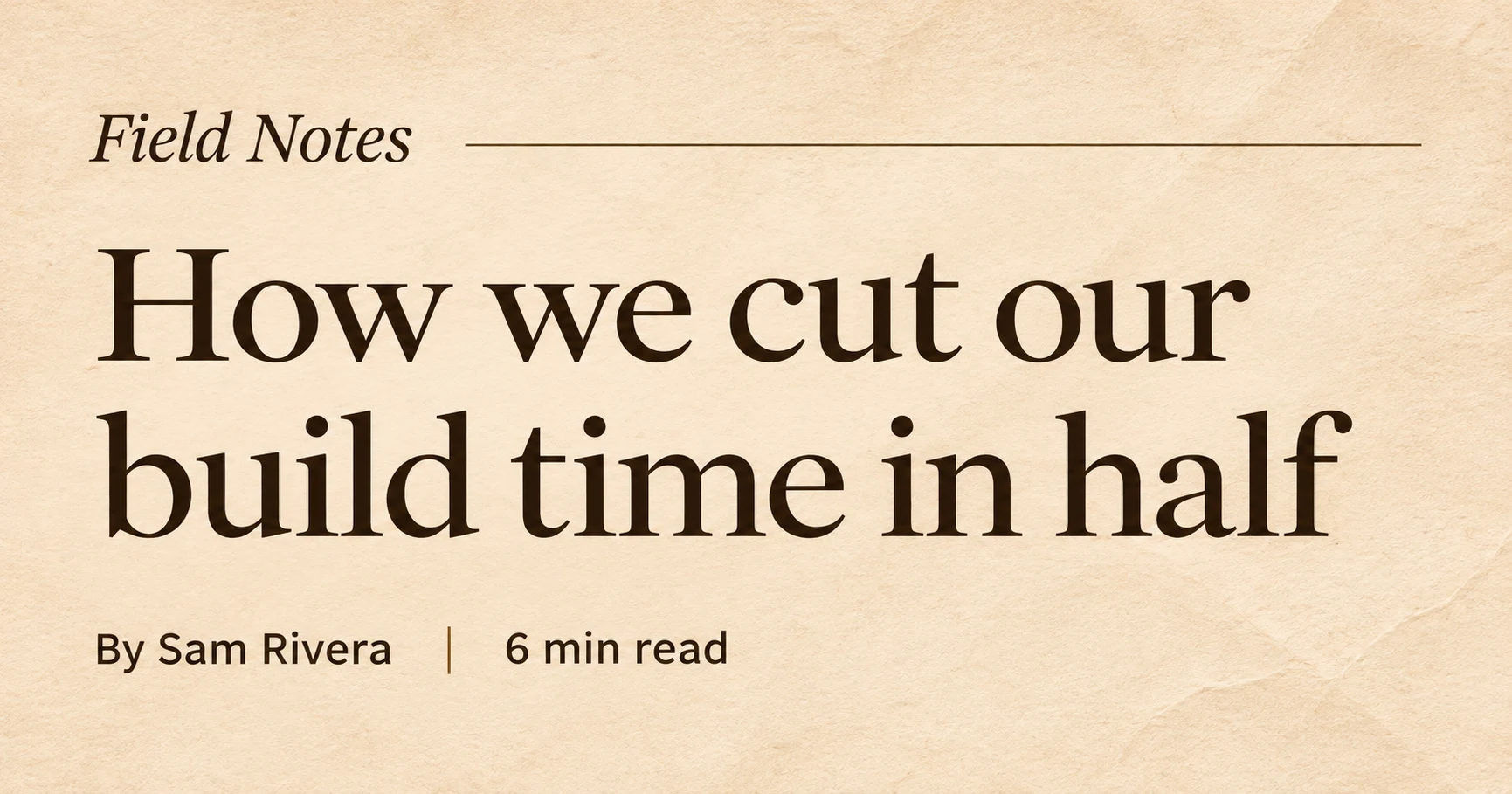
Shown here as a compressed copy of the 1731 × 909 original.
ChatGPT
Its built-in image generator draws the whole picture.
- Size
- 1731 × 909Not the 1200 × 630 asked for
- File
- 2.5 MB PNGAbout 17x heavier
- Text
- Every word spelled right
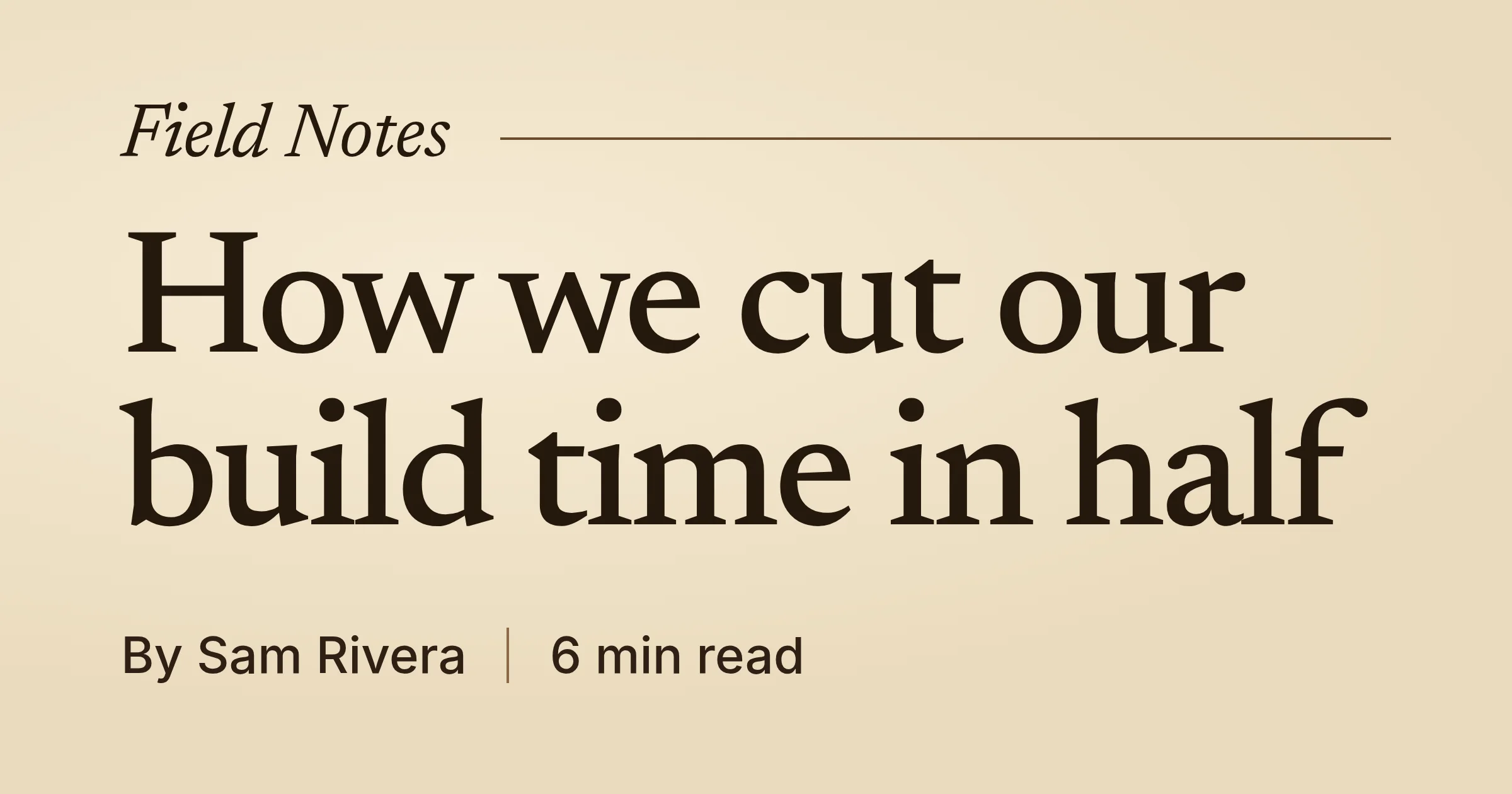
Shown at 2x for sharp screens.
RenderPixels
Your AI assistant writes the design, RenderPixels renders it.
- Size
- 1200 × 630Exactly as asked
- File
- 149 KB PNGReady to upload as is
- Text
- Every word spelled right
- Rendered in under a second
- Comes back with a permanent link
ChatGPT spelled every word right this time. The difference is the file: it came back at the wrong size and about 17x heavier, so it needs resizing and compressing before it works as a share image.
RenderPixels gives you the exact size, ready to upload as is. The same design can also come back in every other size in one go.
Examples
One prompt each
Every image here came from a single request to an AI assistant, rendered by RenderPixels.
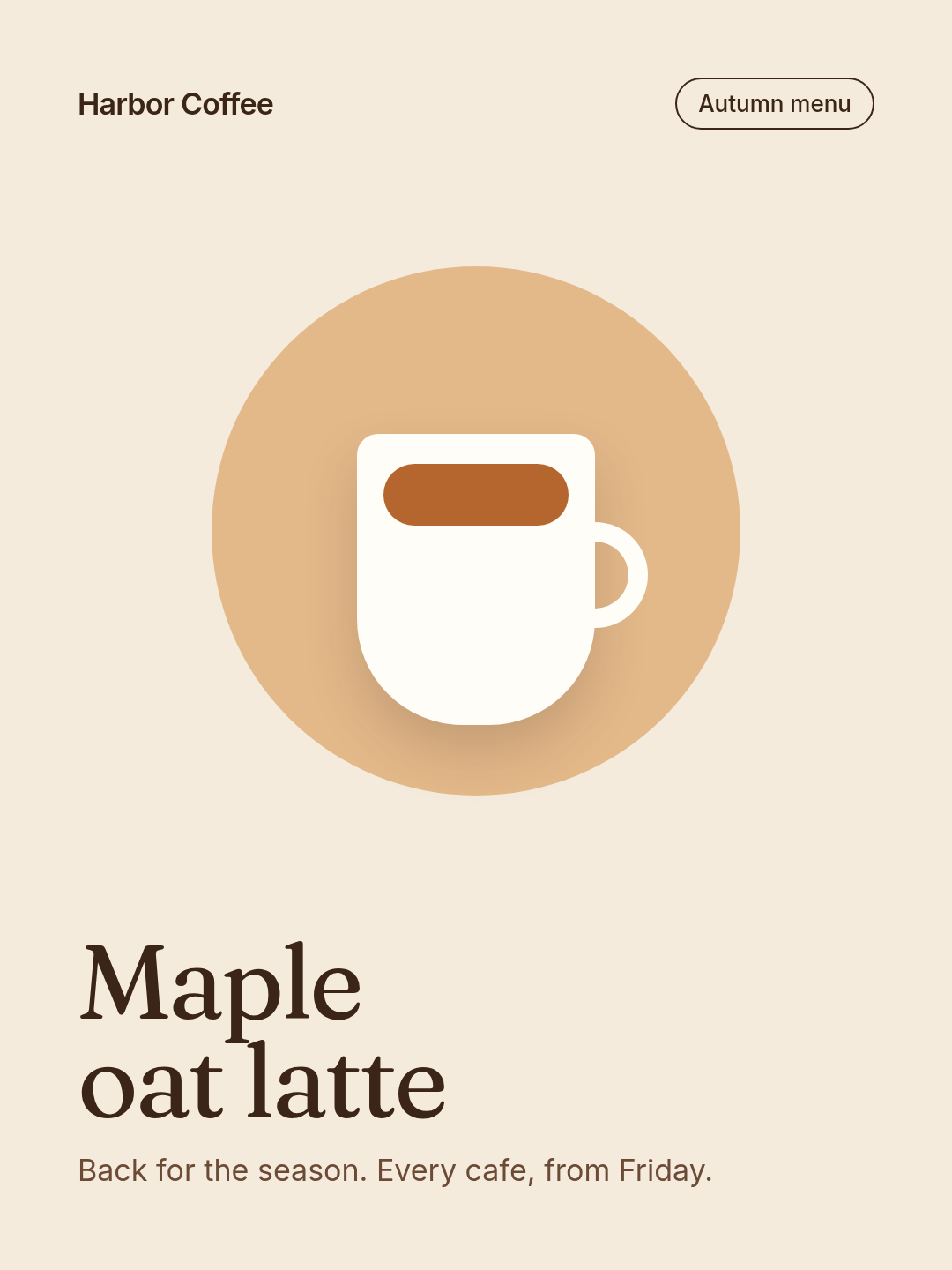
Instagram post
1080 × 1440 PNG
“An Instagram post for Harbor Coffee announcing the maple oat latte. Warm cream background, a simple mug illustration, big serif title.”
Banner
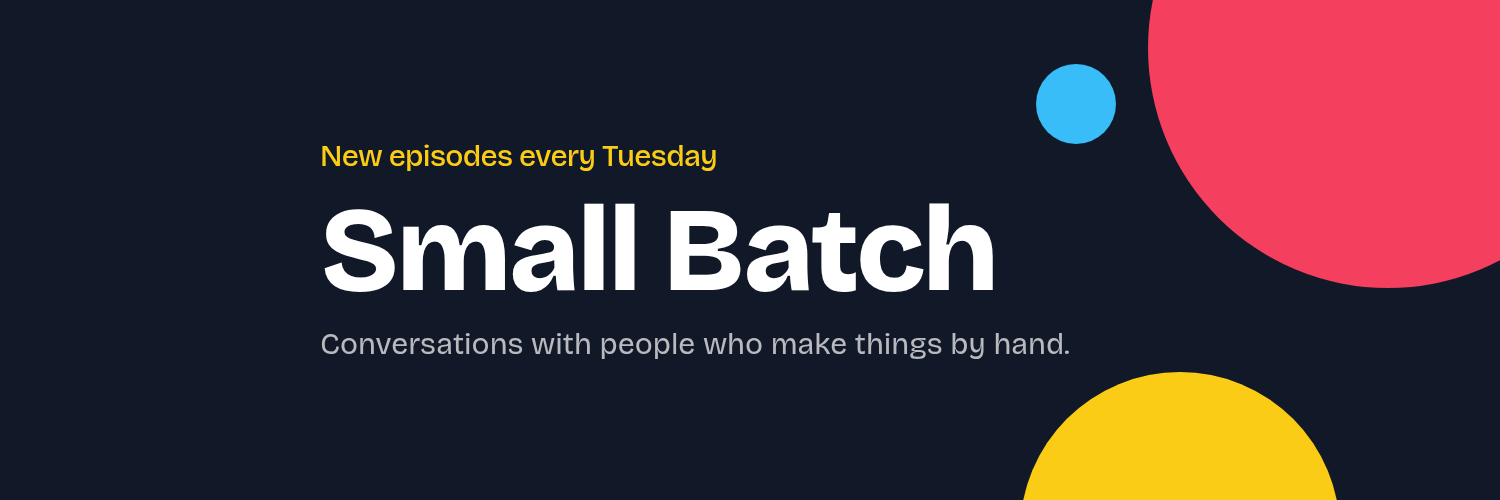
1500 × 500 X header
“An X header for my podcast Small Batch. Dark navy, a big bold title and a few bright circles on the right.”

Logo
1200 × 480 transparent PNG
“A logo for Halcyon: an indigo hexagon mark next to the name in Space Grotesk, on a transparent background.”

Favicon set
favicon.ico, apple-touch-icon, PWA and maskable icons
“A favicon and app icon set: a pale yellow crescent and an orange sun on deep teal.”
Link preview (Open Graph)
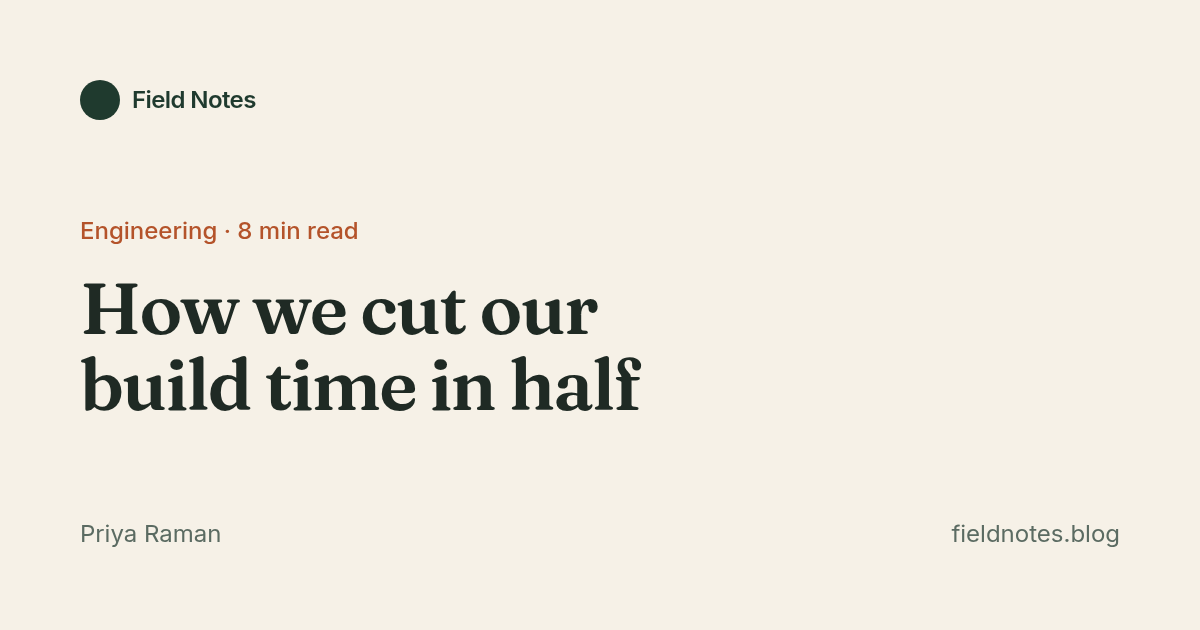
1200 × 630 PNG
“An Open Graph image for my blog post "How we cut our build time in half". Warm paper background, serif headline.”
This page’s share image
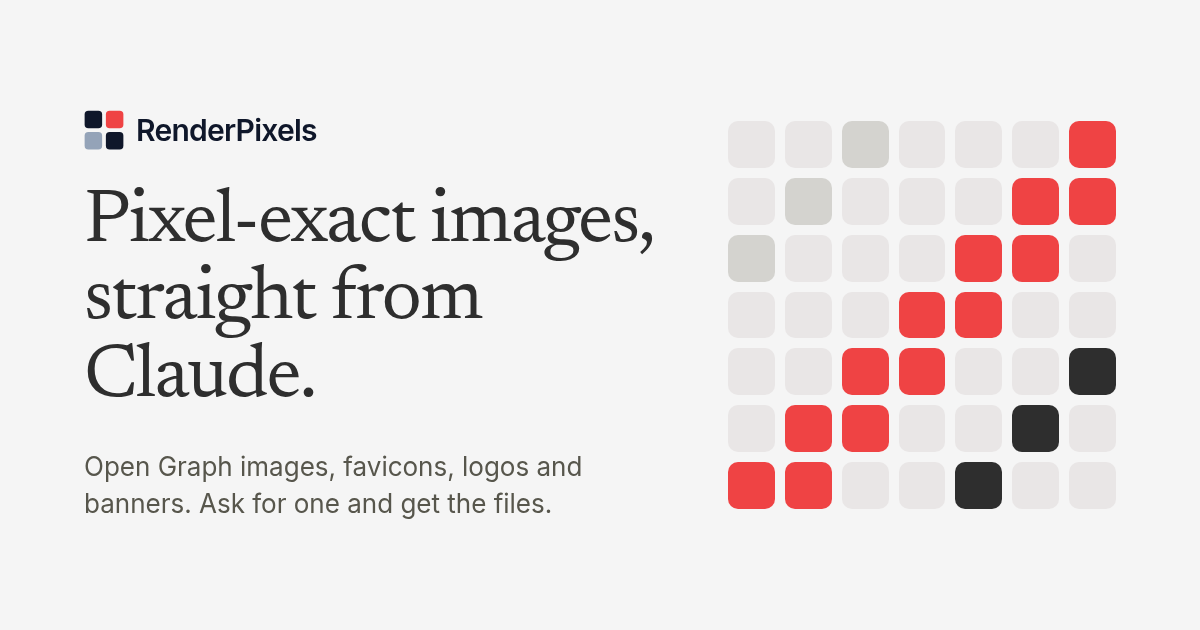
1200 × 630 and 1600 × 900
“An Open Graph image for RenderPixels. Light paper, a serif headline and a grid of red pixels.”
Brand kits
One brand kit, five formats
Save your colors, fonts and logo once as a brand kit, then ask for it by name. Every render uses the same kit, at the exact size each platform wants. No logo yet? Make one here too and save it to the kit.
Fernly brand kit
- Primary#1F3D2B
- Secondary#E4EBDD
- Accent#F2A65A
- Background#F7F5EF
- Foreground#1B231D
- Headings
- Fraunces
- Body
- DM Sans
- Logo
- A leaf in a green circle, plus the Fernly wordmark
Open Graph image
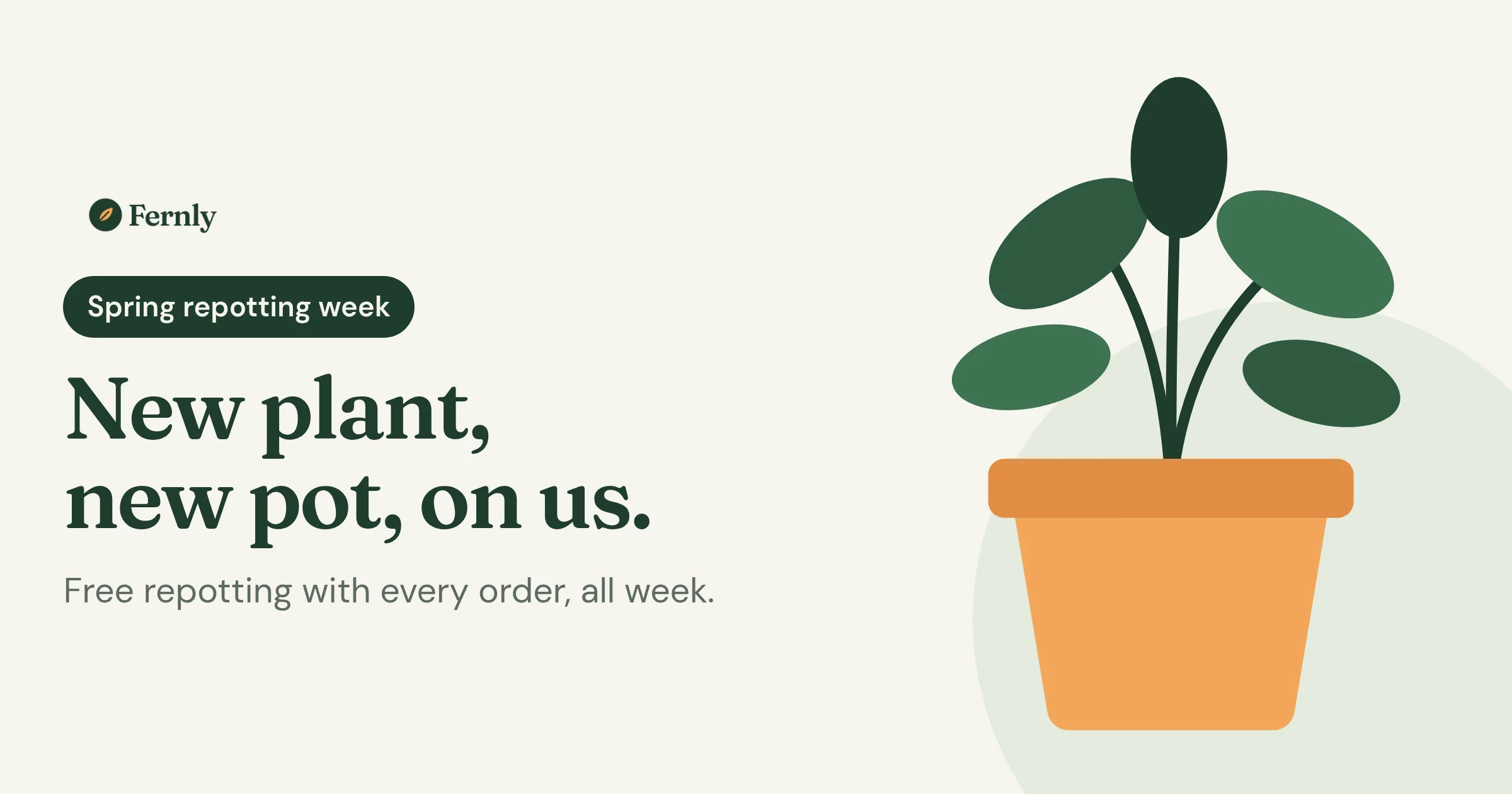
1200 × 630 PNG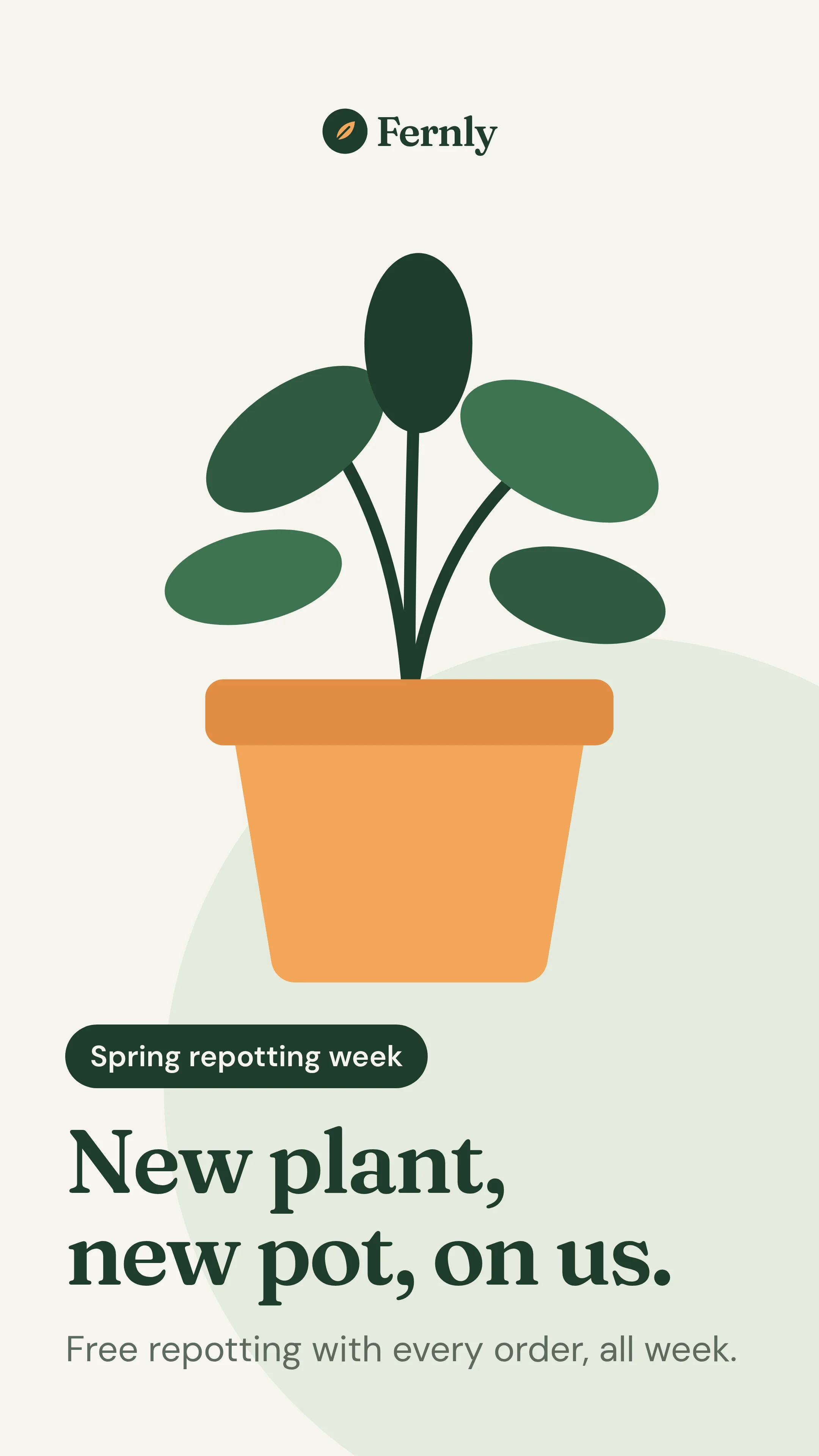
Story
1080 × 1920 PNG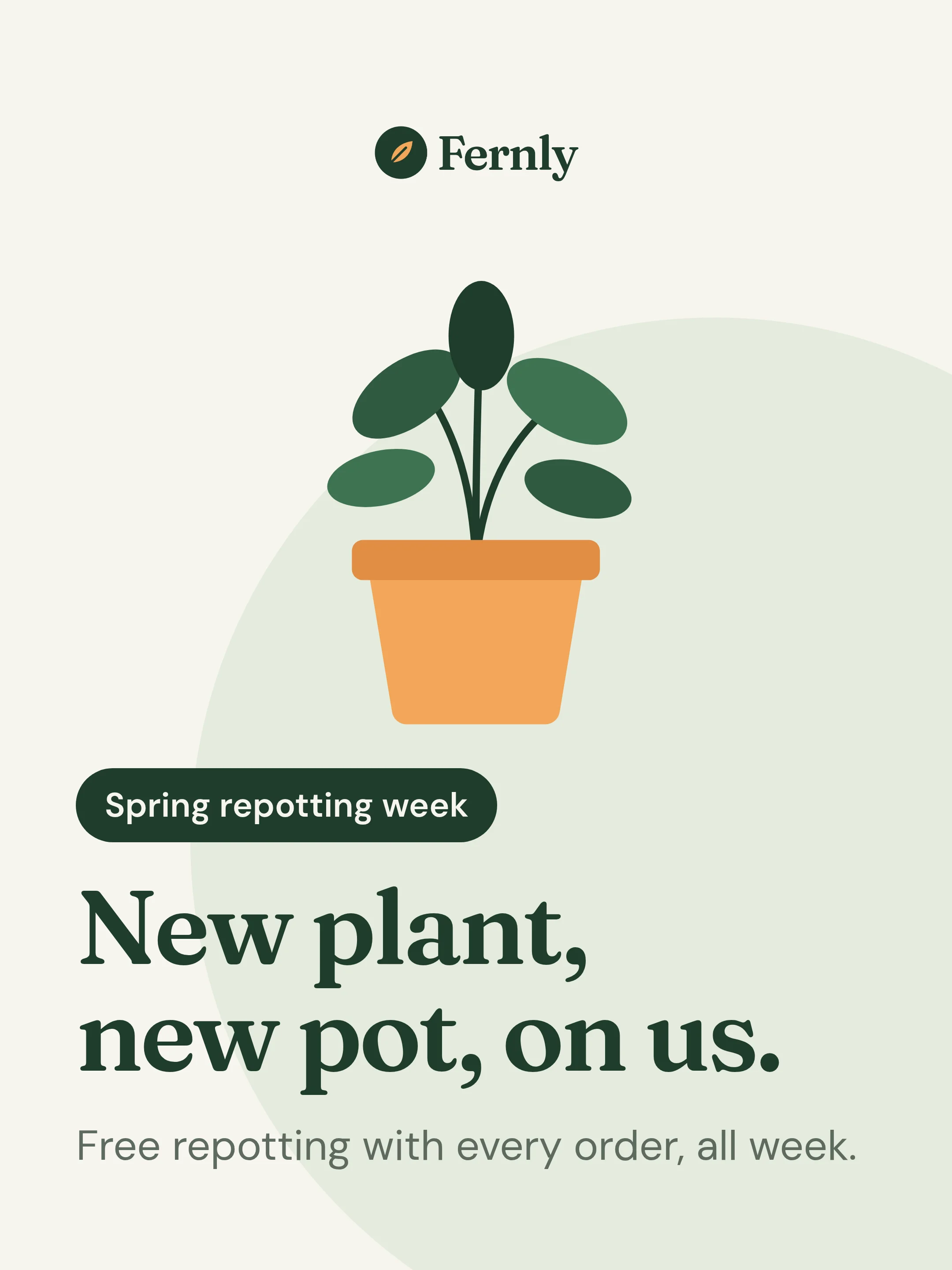
Instagram post
1080 × 1440 PNG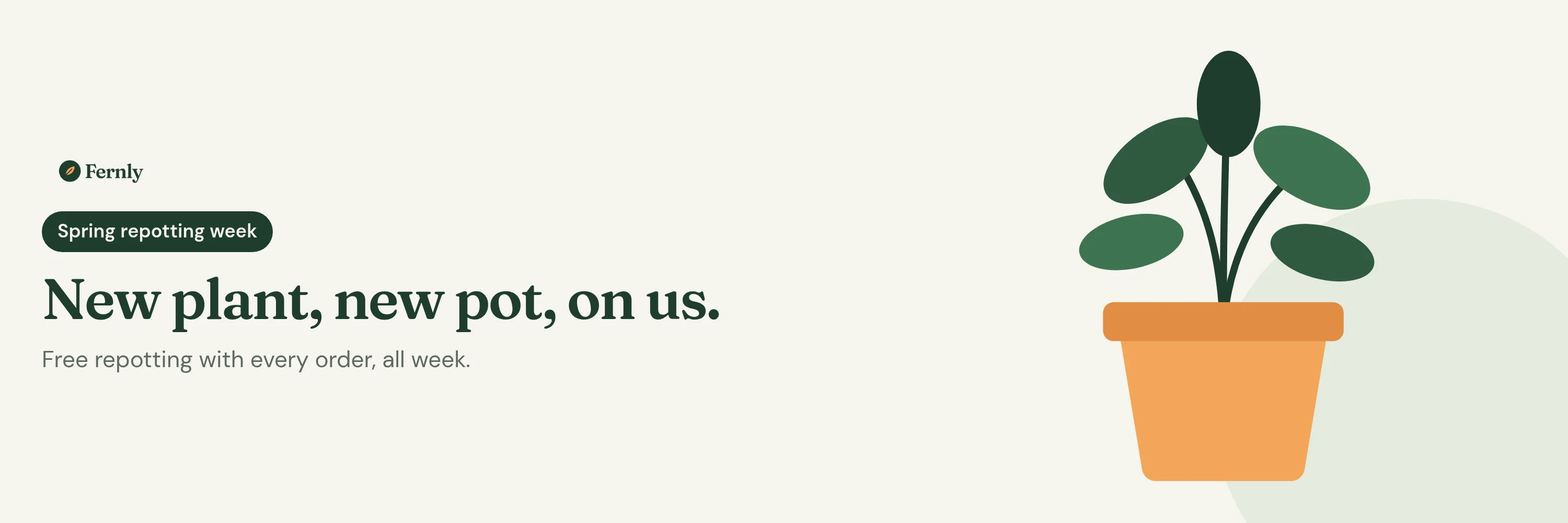
X header
1500 × 500 PNG
Favicon set
512 × 512 app icon
Also favicon.ico, an Apple touch icon, and PWA and maskable icons.
The prompt
“Use my Fernly brand kit to make our Spring repotting week graphics: an Instagram post, an X header, an Open Graph image and a story. Then a favicon set.”
The four social images came from one design, in one request. The favicon set came from a second.
Pricing
Free every month, credits when you need more
Sign up and start rendering. If you run past the free renders, buy a credit pack and keep going.
One credit, one render
One credit pays for one render once the month's free renders are used. A full favicon set still counts as one render.
Credits never expire
Buy a pack once and spend it this month or next year. There’s no subscription.
50free renders every month
No card needed. Your count resets on the 1st, UTC.
Then, credit packs
One-time purchases for when you need more.
- 2,000 credits for $10$0.005 per render
- 6,000 credits for $25$0.0042 per render
- 15,000 credits for $50$0.0033 per render
- 40,000 credits for $100$0.0025 per render
Setup
Set up in a minute
Once you've signed up, add RenderPixels to your AI assistant. After that, ask for images in any chat.
Not sure what to ask? Try: “Make a link preview image for my homepage and save my colors as a brand kit.”
- In Claude, open Settings, then Connectors, and choose Add custom connector.
- Name it RenderPixels and paste the MCP server URL.
- Click Connect, sign in to RenderPixels, then click Authorize.
Claude
- In Claude, open Settings, then Connectors, and choose Add custom connector.
- Name it RenderPixels and paste the MCP server URL.
- Click Connect, sign in to RenderPixels, then click Authorize.
Claude Code
- Run this in your terminal:
claude mcp add --scope user --transport http renderpixels https://renderpixels.com/mcp
- In Claude Code, run
/mcp, pick renderpixels and choose Authenticate. - Sign in to RenderPixels in the browser, then click Authorize.
ChatGPT

- In the ChatGPT sidebar, open Plugins. Click Add, then Add custom MCP server.
- Name it RenderPixels and paste the MCP server URL. Tick "I understand and want to continue", then click Create as a plugin.
- Click Connect RenderPixels, sign in to RenderPixels, then click Authorize.
- In a chat, mention @RenderPixels in your message. The first time it renders, click Allow when ChatGPT asks.
GrokBot

- Ask GrokBot:
- GrokBot builds the connector and keeps it for later chats.
- When the RenderPixels sign-in page opens, sign in, then click Authorize.
Other
- Add the MCP server URL as a remote MCP server with the Streamable HTTP transport.
- Let your AI assistant sign you in with OAuth: sign in to RenderPixels, then click Authorize.
RenderPixels has no API keys, so an AI assistant that can't sign in with OAuth can't connect.
FAQ
Questions before you start
Short answers on what RenderPixels makes, what a render costs and what happens to your images.
Still have a question? Email us with the Email support link at the bottom of this page.
Why not use ChatGPT's image generator?
Image models draw pixels, so the size comes out approximate. In our side-by-side, ChatGPT returned 1731 × 909 at 2.5 MB for a 1200 × 630 request. RenderPixels renders HTML and Tailwind CSS in a real browser, so the size, text and brand colors come out exactly as written, and every file gets a permanent link. For photos and illustrations, an image model is still the right tool.
Which AI assistants work with it?
Claude, Claude Code, ChatGPT, GrokBot and any AI assistant that supports remote MCP with OAuth. Setup takes a minute.
Can it make photos or illustrations?
It doesn't generate photos. It renders HTML and CSS, so it draws text, shapes and SVG illustrations, and it can place a photo from any https URL. For a photo-real picture, make it with an image model and bring it in by URL.
Can I use my own logo and photos?
Yes. Save your logo in a brand kit, from an https URL or from an earlier render, and use any photo by its https URL. Fonts can be any Google Fonts family or your own .woff2 file.
Does editing an image cost another render?
Yes. Each edit is a new render, and so is a re-render to fix clipped text or a missing font. Each counts as one of your 50 free renders this month, or one credit after those. A render that makes several sizes at once, like a full favicon set, still counts as one.
Can I use the images commercially?
Yes. You own the images you make. You need the rights to what goes into them, like fonts, logos and photos. The Terms have the details.
What happens to my links if I delete my account?
We delete your renders and their images, so their links stop loading. Download anything you want to keep before you delete your account. More in the Privacy policy.