A launch needs more images than you'd expect. You make a favicon and an Open Graph image, then Product Hunt asks for a thumbnail, Google's consent screen wants a 120 px logo, and Stripe wants an icon for its emails.
I went through every platform a launch touches and wrote down the images each one asks for. The sizes come from each platform's own docs, checked in November 2026, and I point out where those docs stay vague. Each section ends with a prompt you can copy into Claude, ChatGPT or any AI assistant connected to RenderPixels.
The checklist
Tick these off as you go:
The essentials
0 of 6
The socials
0 of 7
The niche
0 of 6
0 of 19 done
The essentials
Your site needs these whether or not you plan a big launch. Browsers, link previews and your own emails use them from the first visit.
Favicon
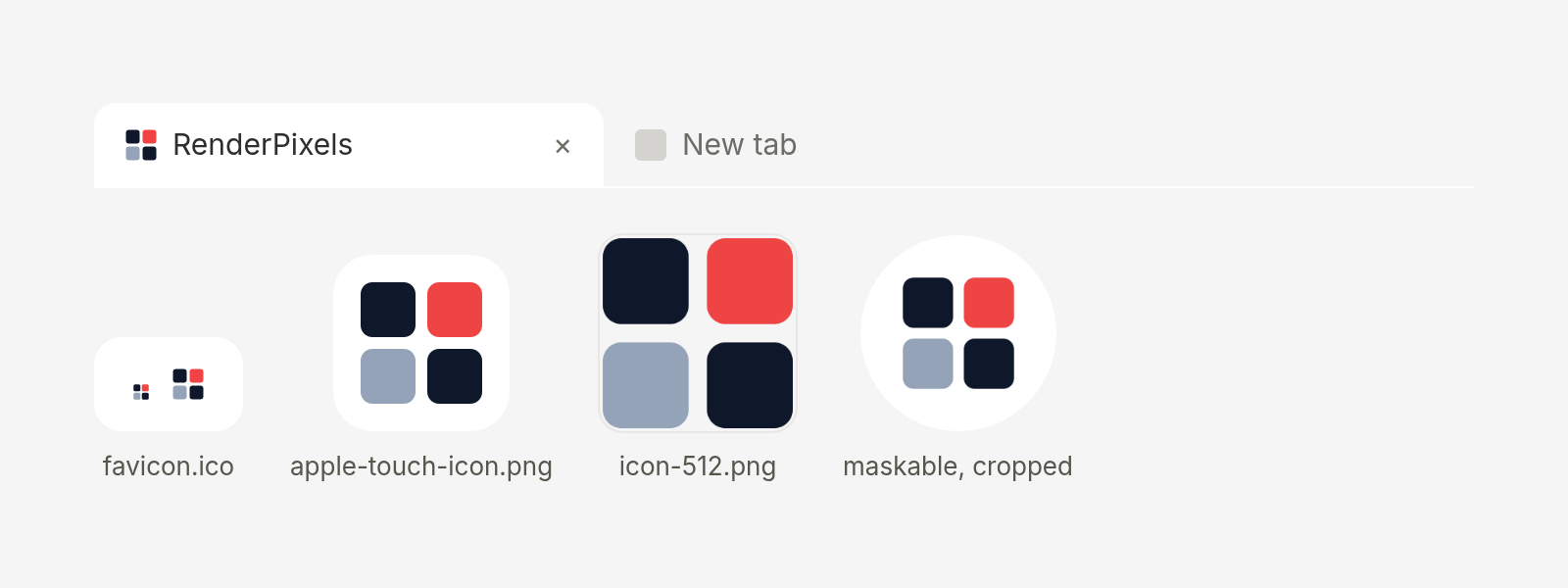
Browsers and phones look for a handful of files, and you'll want all of them:
favicon.icofor browser tabs and bookmarks. Put the 16 and 32 px versions inside it.apple-touch-icon.pngat 180 × 180, for iPhones and iPads that save your site to the home screen. Apple's guide asks for a PNG in your site's root folder.icon-192.pngandicon-512.png, listed in your web app manifest. Chrome asks for both sizes.- A maskable icon at 512 × 512. Some platforms crop it into a circle or another shape, so keep your mark inside the middle 80%. web.dev defines the safe zone as a circle with a radius of 40% of the icon's width.
Google Search shows your favicon next to your results. Its docs ask for a square image of at least 8 × 8 px and recommend going bigger than 48 × 48. Google accepts ICO, PNG, JPEG and a few older formats, and SVG isn't on that list.
You can add a favicon.svg on top. Chrome and Edge have supported SVG favicons since version 80, and Safari added them in version 26, so keep the ICO as your fallback.
RenderPixels ships its own set: a favicon.ico with 16 and 32 px versions, a favicon.svg, the 180 px Apple icon, the 192 and 512 px PNGs, a maskable 512 and a site.webmanifest.
<link rel="icon" href="/favicon.ico" sizes="16x16 32x32">
<link rel="icon" href="/favicon.svg" type="image/svg+xml">
<link rel="apple-touch-icon" href="/apple-touch-icon.png">
<link rel="manifest" href="/site.webmanifest">
RenderPixels turns that one design into favicon.ico (16, 32 and 48 px), apple-touch-icon.png, both manifest PNGs, the maskable icon, a site.webmanifest and the <head> tags. It won't make the SVG favicon, because it renders raster images.
Logo
Your main logo should be an SVG. It stays sharp at any size, and you can recolor it with CSS for dark mode. A designer or a vector tool should make this one. RenderPixels outputs PNG, JPEG and WebP, so it can't hand you a real SVG.
You'll still need PNG copies for the places that won't take SVG: email, Stripe, Google's consent screen, social profiles and directory listings. Make one on a transparent background for light surfaces and one for dark surfaces, at twice the size you expect to display.

Open Graph image
The Open Graph image is the picture people see when they share your link on Facebook, LinkedIn, Slack or iMessage. Meta asks for at least 1200 × 630 px for high-resolution screens, an aspect ratio close to 1.91:1, and files under 8 MB. LinkedIn's minimum for link previews is 1200 × 627 px, with a 5 MB limit. A 1200 × 630 PNG meets both.
X has taken its Cards docs offline, so I can't point you to an official X size for link previews. On RenderPixels I set og:image to a 1200 × 630 image and twitter:image to a separate 1600 × 900 version.
<meta property="og:image" content="https://example.com/og.png">
<meta property="og:image:width" content="1200">
<meta property="og:image:height" content="630">
<meta property="og:image:alt" content="Your product name and tagline">
<meta name="twitter:card" content="summary_large_image">
Keep the text large and away from the edges, so it still reads when an app shows your preview at thumbnail size.
Email logo
Use a PNG logo in your emails. Gmail turns SVG images into PNGs, and Outlook 2007 through 2016 on Windows doesn't show SVG at all, according to caniemail.com's latest tests. Make the PNG twice as wide as you display it, so it stays sharp on high-resolution screens.
The socials
These are the images people see on your X, LinkedIn and Bluesky profiles, in your launch posts and on Product Hunt.
X, LinkedIn and Bluesky profiles
Set up your profiles before launch day, since that's when people click through to them.
- X: profile photo 400 × 400 and header 1500 × 500, as JPEG, GIF or PNG under 2 MB. X can crop 60 px off the top and bottom of the header, so keep text in the middle.
- LinkedIn company page: logo at 400 × 400 (268 × 268 minimum) and cover at 1512 × 256, PNG or JPEG under 3 MB. Older guides still say 1128 × 191, but LinkedIn's help page now says 1512 × 256.
- LinkedIn personal profile: background image at 1584 × 396.
- Bluesky: a banner in a 3:1 ratio, PNG or JPEG under 1 MB. Bluesky doesn't publish a pixel size, but its app crops banners to 3:1 and scales them to 2,000 px wide at most, so the 1500 × 500 X header works here too.
X and LinkedIn launch posts
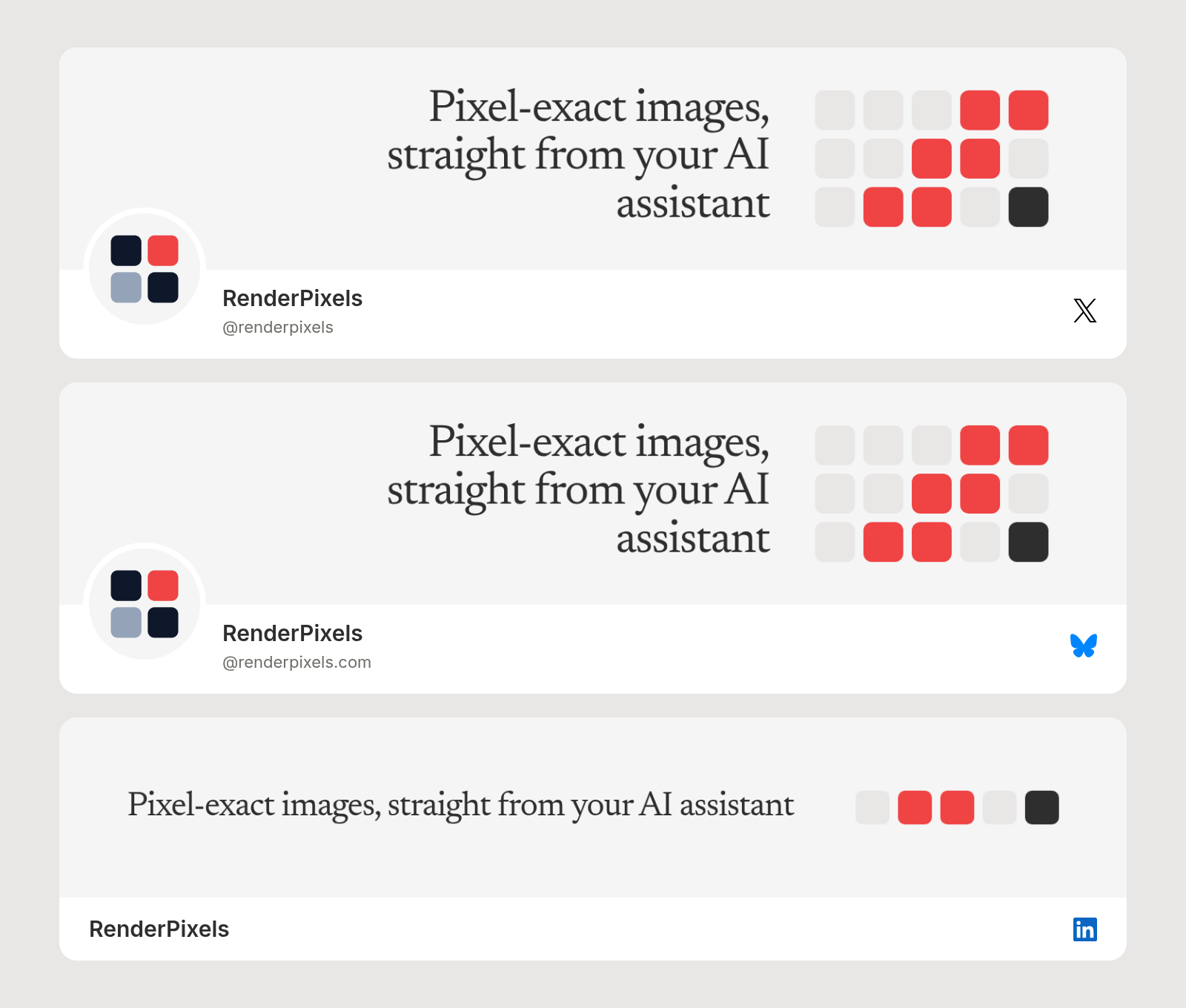
You'll announce the launch on social media, so make an image for each network instead of reusing the OG image.
X doesn't publish a pixel size for post images anymore. Its help center says single images with ratios between 2:1 and 3:4 display in full. 1600 × 900 is 16:9, which sits inside that range.
LinkedIn asks for photos at least 552 × 276 px, recommends 1080 px wide, and accepts ratios from 3:1 to 4:5. A 1080 × 1350 portrait (4:5) is the tallest it allows, and a 1080 × 1080 square works too.

Product Hunt thumbnail and gallery
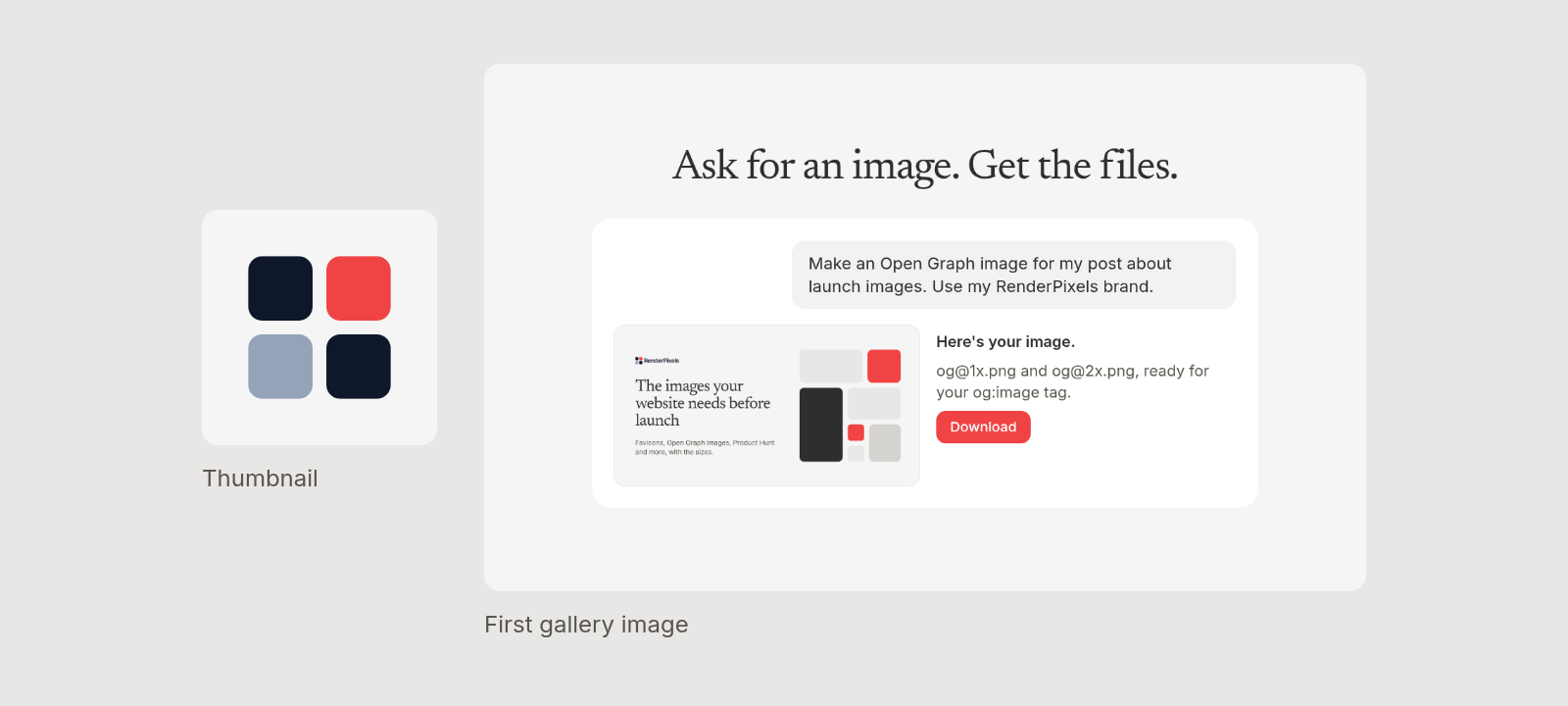
Product Hunt's launch guide asks for two kinds of images:
- Thumbnail: a square, 240 × 240 recommended. GIFs work, but they animate on hover, so make the first frame count.
- Gallery: 1270 × 760 recommended, and you need at least two images. You can drag them into any order after uploading.
Every image has to stay under 3 MB. Lead the gallery with your product doing its job, and put feature lists and pricing after it.
The niche
You need these only if they match how you ship: a browser extension, an iPhone or iPad app, a public repo, Google sign-in, Stripe payments or a demo video.
Chrome Web Store tiles
Skip this one unless you ship a browser extension. If you do, Chrome's docs ask for:
- A 128 × 128 PNG icon, with the artwork at 96 × 96 and 16 px of transparent padding on each side.
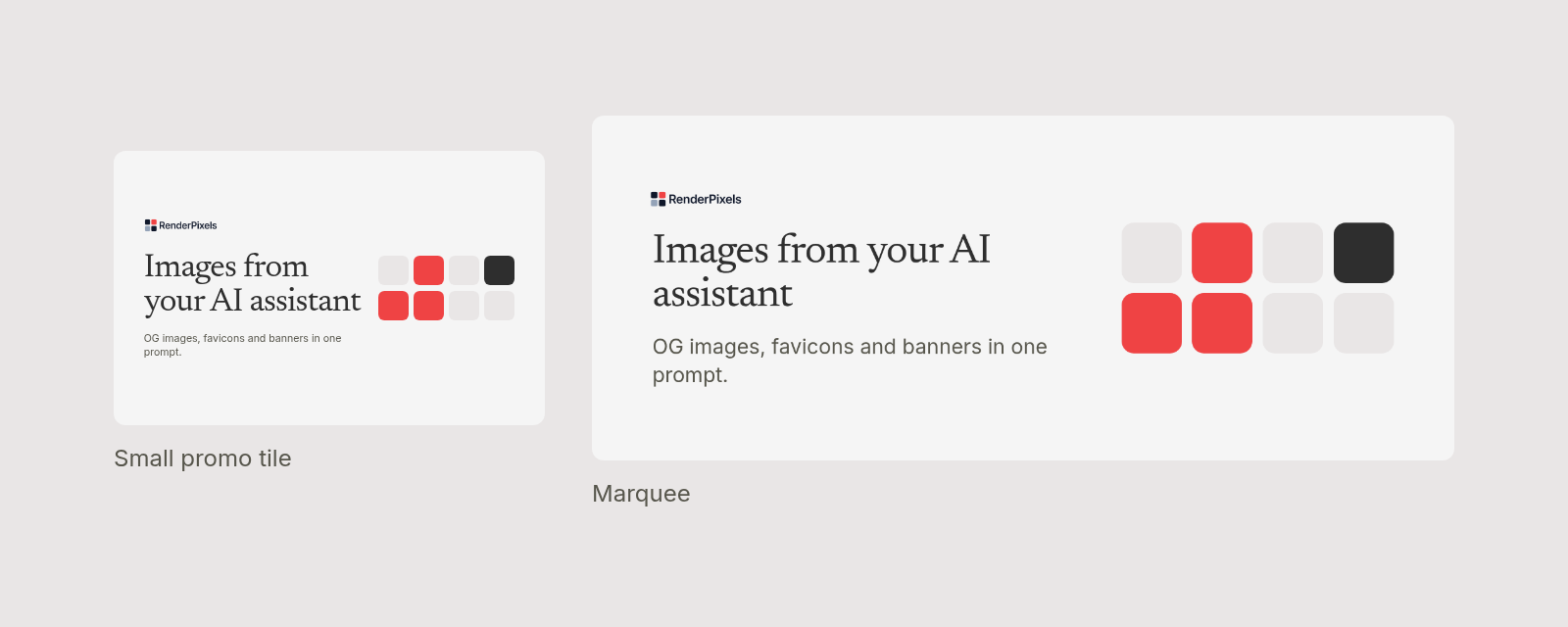
- A small promo tile at 440 × 280. Extensions without one show up after the extensions that have one.
- An optional marquee tile at 1400 × 560.
- One to five screenshots at 1280 × 800 or 640 × 400. The store downscales them all to 640 × 400.
App Store icon and screenshots
If you ship an iPhone or iPad app, Apple asks for two kinds of images:
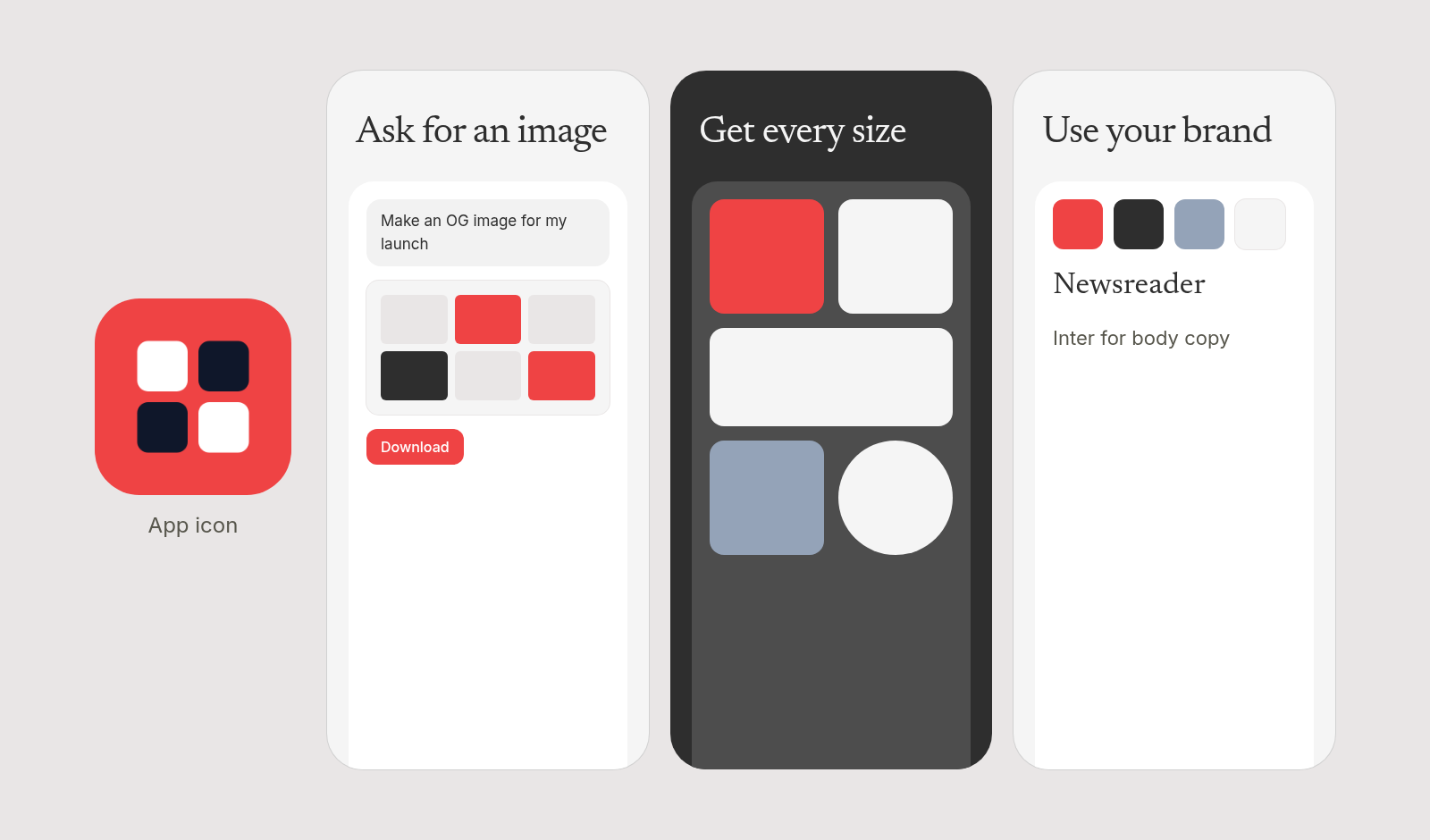
- App icon: a 1024 × 1024 square. Leave the corners square, because iOS, iPadOS and macOS round them for you. Apple's guidelines say icons that arrive already masked end up with jagged edges.
- Screenshots: at least one and up to 10 per device size, as PNG or JPEG with no transparency. The largest iPhone size Apple lists is 1320 × 2868 in portrait, and App Store Connect scales your screenshots down for smaller iPhones when your app looks the same on each. iPad apps also need a 13-inch iPad screenshot at 2064 × 2752.
GitHub social preview
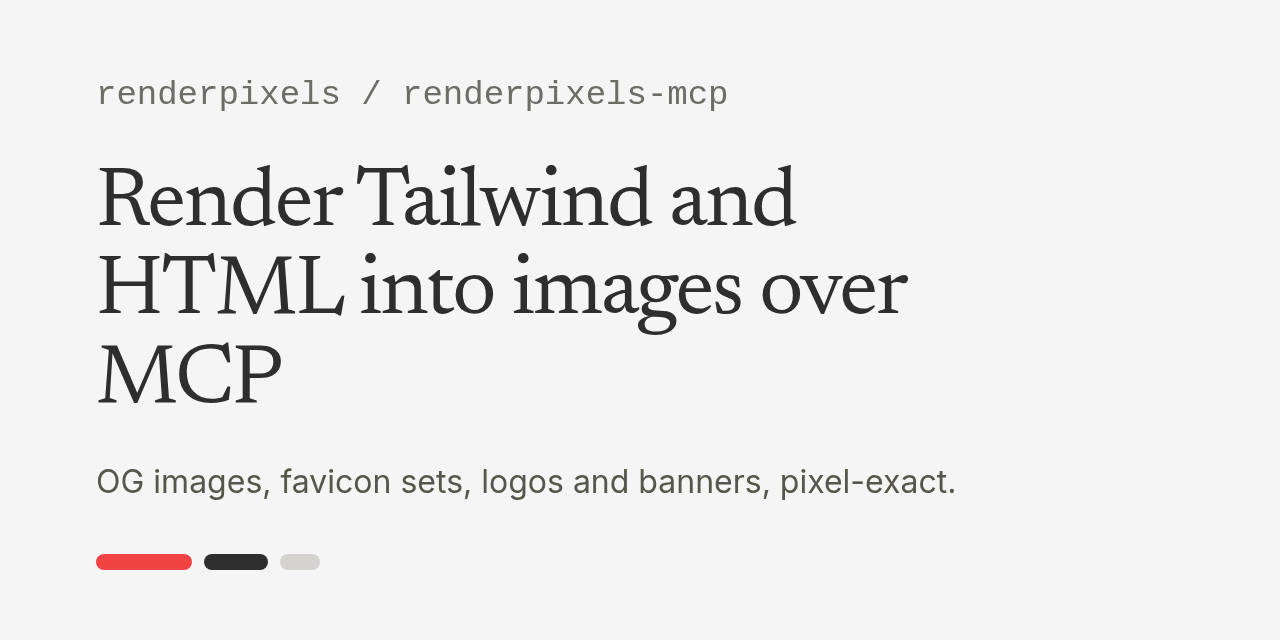
If your project has a public repo, set a social preview in the repo's settings. GitHub recommends 1280 × 640 for the best display and at least 640 × 320, as a PNG, JPG or GIF under 1 MB. It supports transparent PNGs, but recommends a solid background.
Google and Stripe icons
Both show up when someone is about to trust you with an account or a payment, and both are easy to forget.
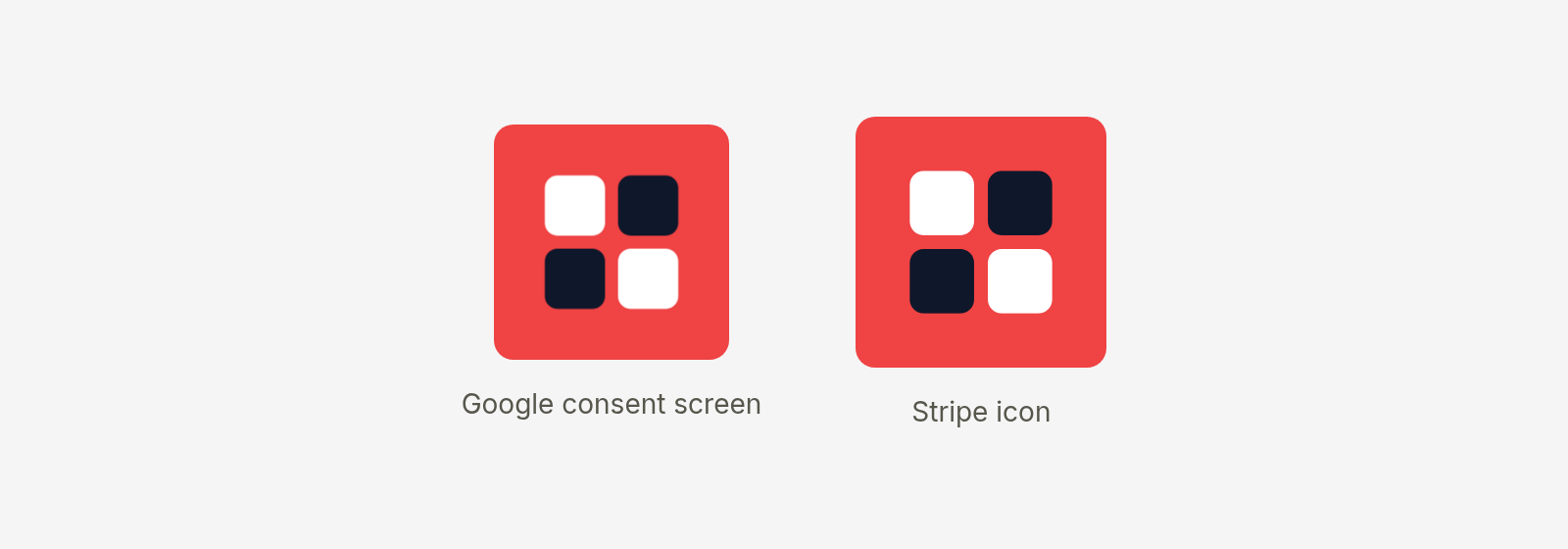
- Google OAuth consent screen: a square logo, 120 × 120 for the best display, JPG, PNG or BMP under 1 MB. Google shows it after your app passes brand verification, so start that before launch day.
- Stripe: an icon (square) and an optional logo (not square), JPG or PNG, under 512 KB and at least 128 × 128. Stripe's emails use the icon and never the logo.
YouTube thumbnail
If you record a demo video, give it a custom thumbnail. YouTube now recommends 3840 × 2160 at 16:9, with a minimum width of 640 px, as JPG or PNG. The upload limit is 2 MB from mobile and 50 MB from a desktop browser. Older guides say 1280 × 720, and YouTube still accepts it.
RenderPixels has a youtube preset at 1280 × 720, and custom sizes go up to 4000 px per side, so you can ask for the full 3840 × 2160.